> ## Documentation Index
> Fetch the complete documentation index at: https://docs.atomicnetworks.co/llms.txt
> Use this file to discover all available pages before exploring further.
# How to Transfer Files to VPS
> Learn how to transfer files to your VPS with this easy to follow tutorial.
**Last Updated: 3/3/24**
Transferring files between your computer and your VPS can seem really confusing at first, especially if you are doing it for the first time. Fortunately, there are lots of easy to follow methods to transfer files to your VPS quickly and safely.
In this guide, we will cover 2 file transfer methods:
* Transferring Files to a Linux VPS
* Transferring Files to a Windows VPS via. RDP
## How to Transfer Files to a Linux VPS
When transferring files between your computer and your VPS, the easiest method is to use a file transfer protocol software with SSH support. We recommend this method for 2 reasons:
1. It's a lot harder to make mistakes.
2. It's easier to use a UI with a mouse to move your files than it is to type out commands.
The FTP client we recommend (and will be using in this guide) is [Filezilla](https://filezilla-project.org/download.php). Filezilla is supported on Windows, Mac, and select Linux distributions.
Make sure you download the correct version for your operating system.
Once you have downloaded the Filezilla client, follow the steps below to start transferring files over to your VPS.
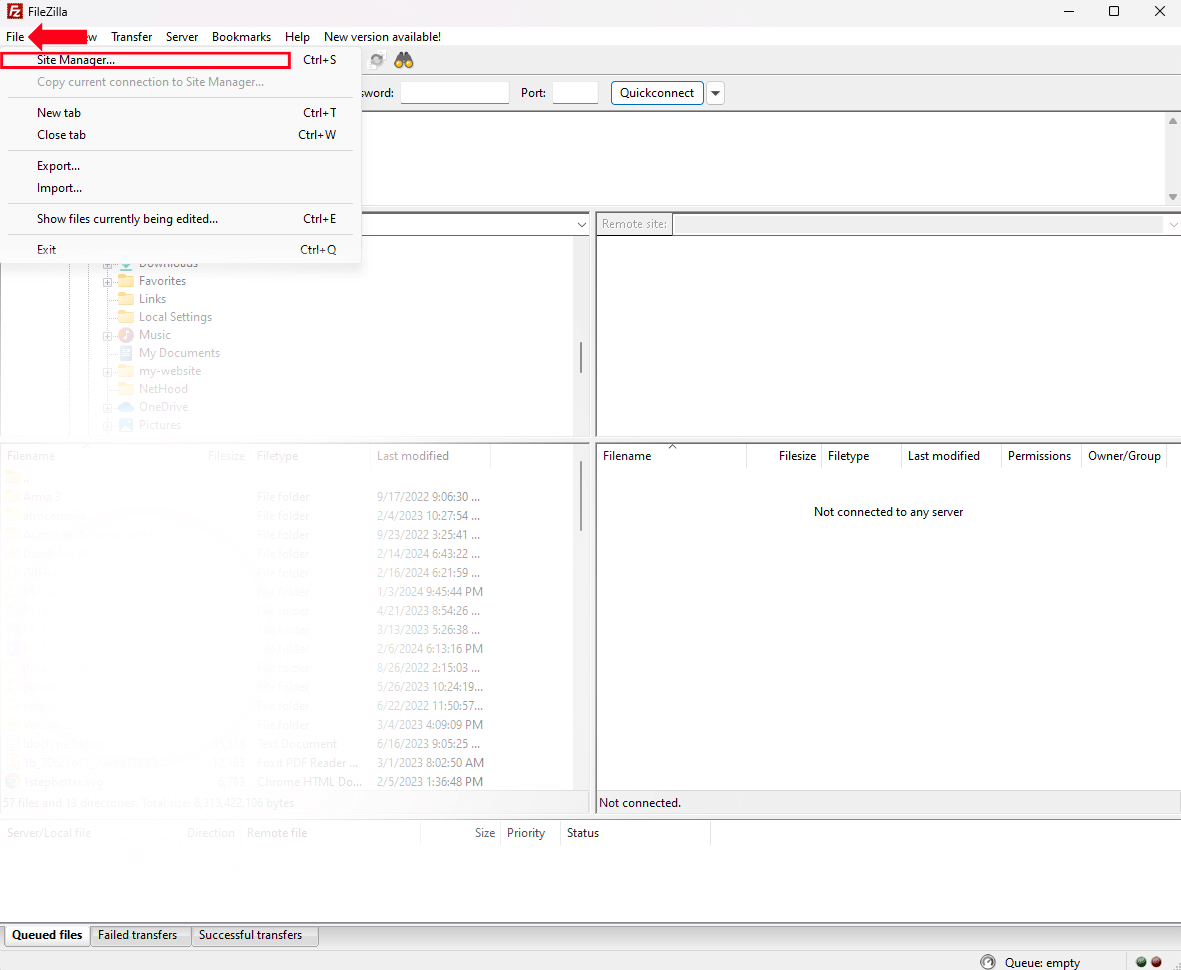
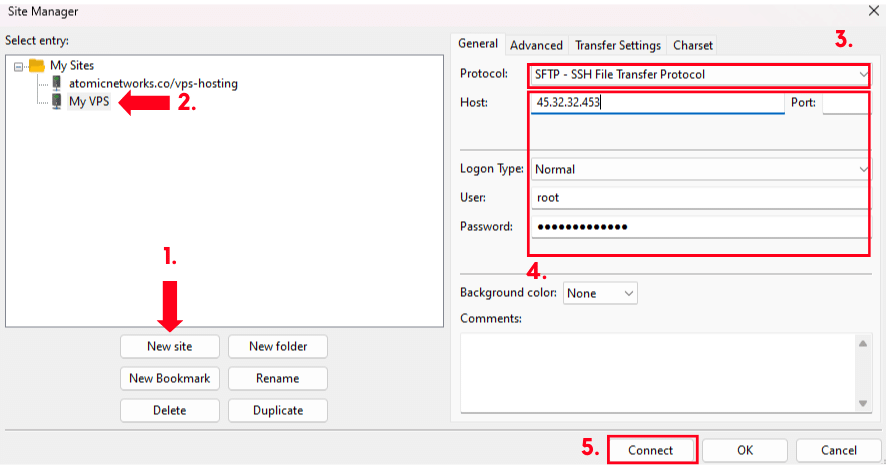 1. Click `New Site`
2. Select your new site.
3. In the Protocol dropdown menu, select `SFTP - SSH File Transfer Protocol`
4. Enter the information for your VPS.
* Host: Enter the IP Address of your VPS.
* Port: Set to Port `22`
If you have changed your port assignments, set this to the custom port you have specified for SSH connections.
* Logon Type: Set to `Normal`
* User: The user you would like to connect to. (Example: `root`)
* Password: The password for the user you would like to connect to.
5. Connect to the VPS.
If this is your first time connecting to the VPS, you will see a warning that says "*The server's host key is unknown. You have no guarantee that the server is the computer you think it is.*". Check the box and click `Ok`.
Once the SFTP connection has been established, you can transfer files over to your VPS using the split view in Filezilla. Local files on your system are shown on the left side. FIles from your VPS will be shown on the right.
## How to Transfer Files to a Windows VPS via. RDP
To transfer files through Remote Desktop, follow these steps below.
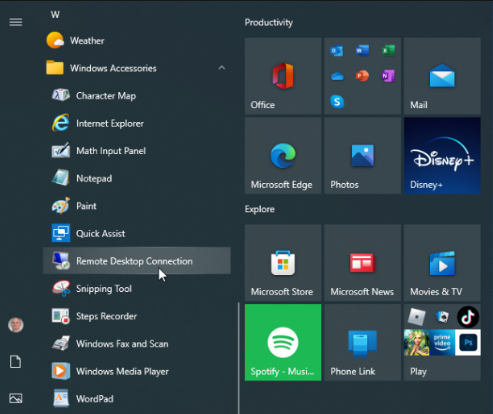
You can open Windows Remote Desktop Connection by opening the Task Bar and typing "RDP" into search.
1. Click `New Site`
2. Select your new site.
3. In the Protocol dropdown menu, select `SFTP - SSH File Transfer Protocol`
4. Enter the information for your VPS.
* Host: Enter the IP Address of your VPS.
* Port: Set to Port `22`
If you have changed your port assignments, set this to the custom port you have specified for SSH connections.
* Logon Type: Set to `Normal`
* User: The user you would like to connect to. (Example: `root`)
* Password: The password for the user you would like to connect to.
5. Connect to the VPS.
If this is your first time connecting to the VPS, you will see a warning that says "*The server's host key is unknown. You have no guarantee that the server is the computer you think it is.*". Check the box and click `Ok`.
Once the SFTP connection has been established, you can transfer files over to your VPS using the split view in Filezilla. Local files on your system are shown on the left side. FIles from your VPS will be shown on the right.
## How to Transfer Files to a Windows VPS via. RDP
To transfer files through Remote Desktop, follow these steps below.
You can open Windows Remote Desktop Connection by opening the Task Bar and typing "RDP" into search.
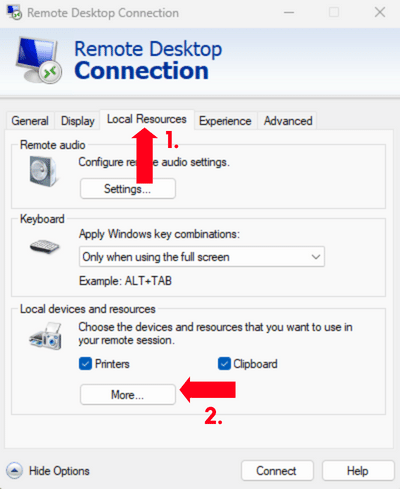
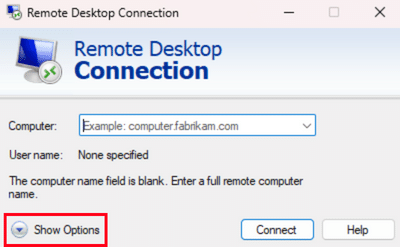 Click the `More` button shown under the `Local Devices and Resources` category of the menu.
 Pick the drives with the files you want to transfer over to your RDP VPS. Click `Ok`, then connect to the VPS.
Once you have configured the drives you are going to use on your Remote Desktop, connect to your VPS. When you open the file explorer, you will see the drives you selected in the Local Resources tab.
Pick the drives with the files you want to transfer over to your RDP VPS. Click `Ok`, then connect to the VPS.
Once you have configured the drives you are going to use on your Remote Desktop, connect to your VPS. When you open the file explorer, you will see the drives you selected in the Local Resources tab.