> ## Documentation Index
> Fetch the complete documentation index at: https://docs.atomicnetworks.co/llms.txt
> Use this file to discover all available pages before exploring further.
# How to Transfer Files to GMod Server Using SFTP
> Learn about how to transfer files to your GMod server on an Atomic Networks service.
Using SFTP to transfer files to your GMod server is an efficent method to move big files onto your GMod server hosting. SFTP is required to transfer files larger than 100MB. In this guide, we will explain how to use an application called Filezilla to perform SFTP transfers for your GMod server.
## Step 1: Download Filezilla
Click [here](https://filezilla-project.org/) for a download link to the Filezilla application. Click the button that says *Download Filezilla Client*, **do not select *Download Filezilla Server***. You do not need to own Filezilla Pro to complete this guide.
## Step 2: Navigate to Atomic Panel
Click [here](https://panel.atomicnetworks.co/login) to navigate to Atomic Panel. You can log in using your account credentials that you received following checkout. The credentials email is sent to the email address on file in the Billing Panel.
If you're not a current Atomic Networks client, [claim your Free GMod Server Hosting](https://atomicnetworks.co/garrys-mod-server-hosting) to get started on a GMod server for your favorite gamemode in less than half an hour. If you're already hosting with another GMod service, see [how we offer way more performance for less.](https://atomicnetworks.co/garrys-mod-server-hosting)
## Step 3: Navigate to the *SFTP Details* Tab Under *System*
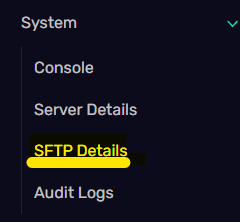 Once you have the SFTP Details tab open, you will see the following box.
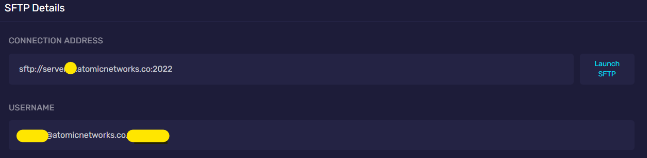 There are 3 credentials in this box that you need to keep track of, these will be inputed into the Filezilla client.
1. Connection Address - In the image above, this is `sftp://server.atomicnetworks.co`
2. Port - In the image above, the port is `2022`
3. Username - This is the box below the connection address. It will contain a unique identifier for your server.
Only share these details with trusted users. Anyone with access to your SFTP credentials has the ability to transfer files from and to your server.
## Step 4: Setup SFTP Transfers
There are 3 credentials in this box that you need to keep track of, these will be inputed into the Filezilla client.
1. Connection Address - In the image above, this is `sftp://server.atomicnetworks.co`
2. Port - In the image above, the port is `2022`
3. Username - This is the box below the connection address. It will contain a unique identifier for your server.
Only share these details with trusted users. Anyone with access to your SFTP credentials has the ability to transfer files from and to your server.
## Step 4: Setup SFTP Transfers
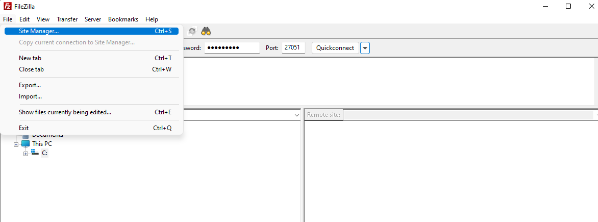 Open the Filezilla application, select *Site Manager* under the *File* bar.
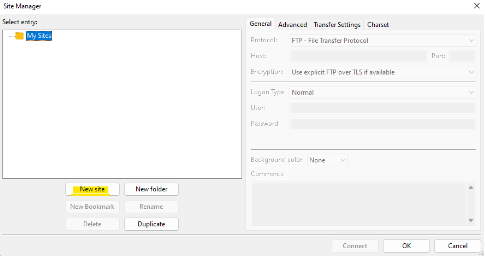 Click the *New Site* button and give your site a name. This can be anything you want to name it.
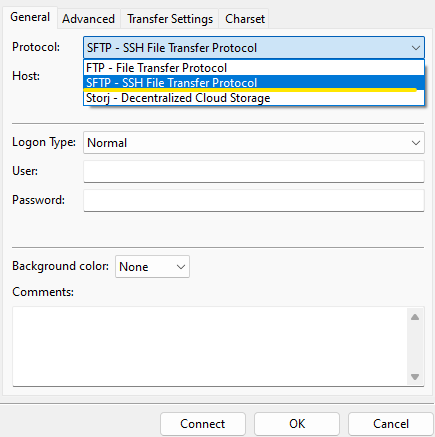 Under the *Protocol* section, select *SFTP*
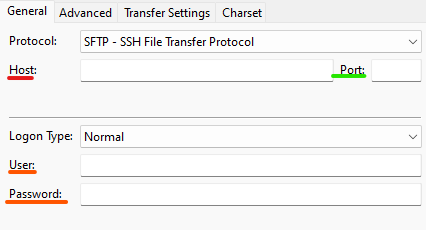 Insert the credentials you gathered in Step 2 into the boxes.
1. Connection Address - Paste the connection address into the *Host* textbox.
2. Port - Paste the port into the *Port* textbox.
3. Username - Paste the username into the *Username* textbox.
4. Password - Enter the password you use to login to the Game Server Panel.
Once you have completed these steps you can transfer files using SFTP on Filezilla.
Insert the credentials you gathered in Step 2 into the boxes.
1. Connection Address - Paste the connection address into the *Host* textbox.
2. Port - Paste the port into the *Port* textbox.
3. Username - Paste the username into the *Username* textbox.
4. Password - Enter the password you use to login to the Game Server Panel.
Once you have completed these steps you can transfer files using SFTP on Filezilla.