> ## Documentation Index
> Fetch the complete documentation index at: https://docs.atomicnetworks.co/llms.txt
> Use this file to discover all available pages before exploring further.
# How to Wipe a Rust Server
> Learn about how to wipe a Rust server with this easy to follow guide.
**Last Updated 3/16/24**
Wiping a Rust server is a crucial part of being an Admin. By properly wiping your server at set times throughout the month, you can develop a consistent player base that comes back week by week.
## How to Wipe a Rust Server
To wipe a Rust server:
Click [here](https://panel.atomicnetworks.co/login) to navigate to Atomic Panel. You can log in using your account credentials that you received following checkout. The credentials email is sent to the email address on file in the Billing Panel.
If you're not a current Atomic Networks client, [get started on a Rust server](https://atomicnetworks.co/rust-server-hosting) in less than half an hour. If you're already hosting with another Rust service, see [how we offer way more for way less.](https://atomicnetworks.co/rust-server-hosting)
In order for these changes to take affect, you will need to stop the server.
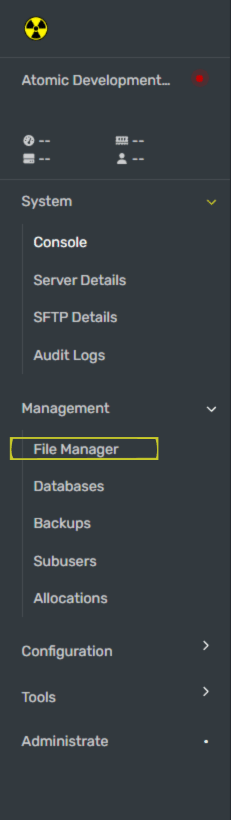 You can find these files in the pathway `/home/container/server/rust`
If you are only performing a map wipe delete the .map and .sav files in the folder. This will reset the map, but keep players' blueprint progress.
If you are performing a full blueprint wipe, delete the .map, .sav files, and the .db files.
Once you have deleted the correct files, restart your Rust server for the wipe to be complete.
## How to Update a Rust Server
Every first Thursday of the month, a mandatory force wipe occurs on Rust. This wipe will require you to update your rust server.
To update a Rust server:
Click [here](https://panel.atomicnetworks.co/login) to navigate to Atomic Panel. You can log in using your account credentials that you received following checkout. The credentials email is sent to the email address on file in the Billing Panel.
If you're not a current Atomic Networks client, [get started on a Rust server](https://atomicnetworks.co/rust-server-hosting) in less than half an hour. If you're already hosting with another Rust service, see [how we offer way more for way less.](https://atomicnetworks.co/rust-server-hosting)
In order for these changes to take affect, you will need to stop the server.
You can find these files in the pathway `/home/container/server/rust`
If you are only performing a map wipe delete the .map and .sav files in the folder. This will reset the map, but keep players' blueprint progress.
If you are performing a full blueprint wipe, delete the .map, .sav files, and the .db files.
Once you have deleted the correct files, restart your Rust server for the wipe to be complete.
## How to Update a Rust Server
Every first Thursday of the month, a mandatory force wipe occurs on Rust. This wipe will require you to update your rust server.
To update a Rust server:
Click [here](https://panel.atomicnetworks.co/login) to navigate to Atomic Panel. You can log in using your account credentials that you received following checkout. The credentials email is sent to the email address on file in the Billing Panel.
If you're not a current Atomic Networks client, [get started on a Rust server](https://atomicnetworks.co/rust-server-hosting) in less than half an hour. If you're already hosting with another Rust service, see [how we offer way more for way less.](https://atomicnetworks.co/rust-server-hosting)
In order for these changes to take affect, you will need to stop the server.
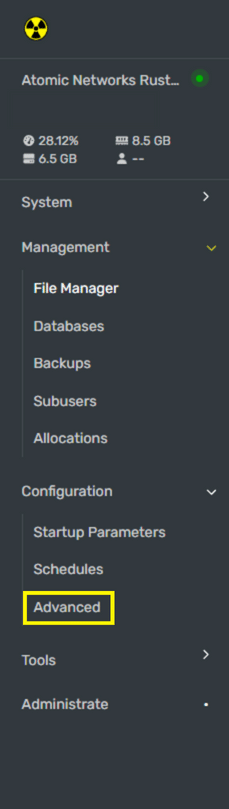 This will automatically update your Rust server to the latest version. If you want to switch to the Beta branch check the "Beta" option.
When you click this button, your server panel will be unavailable temporarily.
Still having issues? Contact our support at [https://billing.atomicnetworks.co/submitticket.php](https://billing.atomicnetworks.co/submitticket.php)
This will automatically update your Rust server to the latest version. If you want to switch to the Beta branch check the "Beta" option.
When you click this button, your server panel will be unavailable temporarily.
Still having issues? Contact our support at [https://billing.atomicnetworks.co/submitticket.php](https://billing.atomicnetworks.co/submitticket.php)