> ## Documentation Index
> Fetch the complete documentation index at: https://docs.atomicnetworks.co/llms.txt
> Use this file to discover all available pages before exploring further.
# How to Change Rust Server Description, Header Image, and Server URL
> Learn about how to change your Rust server description, image, and server URL with this easy to follow guide.
**Last Updated 3/14/24**
Having a clean server description is an important first impression to make for potential players.
## How to Change Rust Server Description
To change the server description on your Rust server:
Click [here](https://panel.atomicnetworks.co/login) to navigate to Atomic Panel. You can log in using your account credentials that you received following checkout. The credentials email is sent to the email address on file in the Billing Panel.
If you're not a current Atomic Networks client, [get started on a Rust server](https://atomicnetworks.co/rust-server-hosting) in less than half an hour. If you're already hosting with another Rust service, see [how we offer way more for way less.](https://atomicnetworks.co/rust-server-hosting)
In order for the changes to be active, you will need to stop and restart your server once you are done.
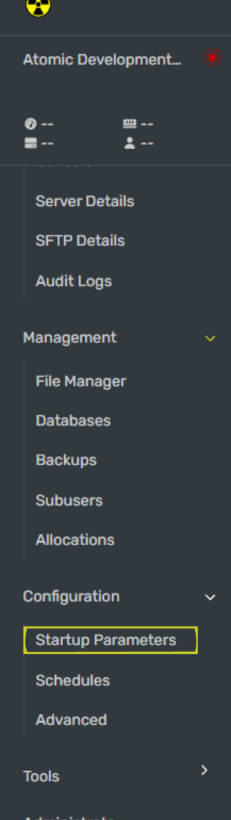 This is the box that contains your server description. We recommend putting in rules and other information about your server here. To create line spaces, add an \n in the description.
Example: `Welcome To Atmc.cc\nRules\n1. No Chat Spam\n2. No Hate Speech`
Once you have set your server description, restart your Rust server for the description to be updated.
## How to Change Rust Server Image
To change the server image on your Rust Server:
Click [here](https://panel.atomicnetworks.co/login) to navigate to Atomic Panel. You can log in using your account credentials that you received following checkout. The credentials email is sent to the email address on file in the Billing Panel.
If you're not a current Atomic Networks client, [get started on a Rust server](https://atomicnetworks.co/rust-server-hosting) in less than half an hour. If you're already hosting with another Rust service, see [how we offer way more for way less.](https://atomicnetworks.co/rust-server-hosting)
In order for the changes to be active, you will need to stop and restart your server once you are done.
This is the box the URL for your server image. To create a banner for your rust server, you can use an image that's between 512x256 or 1024x512.
To grab an image URL, you can upload your image to a website like [https://imgur.com/](https://imgur.com/) for free image hosting.
If you are planning on using this method - make sure to right click on the image and "Copy Image URL" when grabbing your link.
Once you have a URL, paste it into the `Server Image` box.
Once you have set your server description, restart your Rust server for the description to be updated.
## How to Change Rust Server URL
To change your Rust Server URL:
Click [here](https://panel.atomicnetworks.co/login) to navigate to Atomic Panel. You can log in using your account credentials that you received following checkout. The credentials email is sent to the email address on file in the Billing Panel.
If you're not a current Atomic Networks client, [get started on a Rust server](https://atomicnetworks.co/rust-server-hosting) in less than half an hour. If you're already hosting with another Rust service, see [how we offer way more for way less.](https://atomicnetworks.co/rust-server-hosting)
In order for the changes to be active, you will need to stop and restart your server once you are done.
This is the box that contains your server URL. You can paste a link to a website here.
When done correctly, a new box will appear when players connect to your server.
This is the box that contains your server description. We recommend putting in rules and other information about your server here. To create line spaces, add an \n in the description.
Example: `Welcome To Atmc.cc\nRules\n1. No Chat Spam\n2. No Hate Speech`
Once you have set your server description, restart your Rust server for the description to be updated.
## How to Change Rust Server Image
To change the server image on your Rust Server:
Click [here](https://panel.atomicnetworks.co/login) to navigate to Atomic Panel. You can log in using your account credentials that you received following checkout. The credentials email is sent to the email address on file in the Billing Panel.
If you're not a current Atomic Networks client, [get started on a Rust server](https://atomicnetworks.co/rust-server-hosting) in less than half an hour. If you're already hosting with another Rust service, see [how we offer way more for way less.](https://atomicnetworks.co/rust-server-hosting)
In order for the changes to be active, you will need to stop and restart your server once you are done.
This is the box the URL for your server image. To create a banner for your rust server, you can use an image that's between 512x256 or 1024x512.
To grab an image URL, you can upload your image to a website like [https://imgur.com/](https://imgur.com/) for free image hosting.
If you are planning on using this method - make sure to right click on the image and "Copy Image URL" when grabbing your link.
Once you have a URL, paste it into the `Server Image` box.
Once you have set your server description, restart your Rust server for the description to be updated.
## How to Change Rust Server URL
To change your Rust Server URL:
Click [here](https://panel.atomicnetworks.co/login) to navigate to Atomic Panel. You can log in using your account credentials that you received following checkout. The credentials email is sent to the email address on file in the Billing Panel.
If you're not a current Atomic Networks client, [get started on a Rust server](https://atomicnetworks.co/rust-server-hosting) in less than half an hour. If you're already hosting with another Rust service, see [how we offer way more for way less.](https://atomicnetworks.co/rust-server-hosting)
In order for the changes to be active, you will need to stop and restart your server once you are done.
This is the box that contains your server URL. You can paste a link to a website here.
When done correctly, a new box will appear when players connect to your server.
 Once you have set your server description, restart your Rust server for the description to be updated.
Still having issues? Contact our support at [https://billing.atomicnetworks.co/submitticket.php](https://billing.atomicnetworks.co/submitticket.php)
Once you have set your server description, restart your Rust server for the description to be updated.
Still having issues? Contact our support at [https://billing.atomicnetworks.co/submitticket.php](https://billing.atomicnetworks.co/submitticket.php)