> ## Documentation Index
> Fetch the complete documentation index at: https://docs.atomicnetworks.co/llms.txt
> Use this file to discover all available pages before exploring further.
# GMod - Auto Download Addons
> Learn about how to make GMod addons download automatically on connect for your server.
**Last Updated: 3/6/24**
## Step 1: Navigate to Atomic Panel
Click [here](https://panel.atomicnetworks.co/login) to navigate to Atomic Panel. You can log in using your account credentials that you received following checkout. The credentials email is sent to the email address on file in the Billing Panel.
If you're not a current Atomic Networks client, [claim your Free GMod Server Hosting](https://atomicnetworks.co/garrys-mod-server-hosting) to get started on a GMod server for your favorite gamemode in less than half an hour. If you're already hosting with another GMod service, see [how we offer way more performance for less.](https://atomicnetworks.co/garrys-mod-server-hosting)
## Step 2: Navigate to the *File Manager* Tab Under *Management*
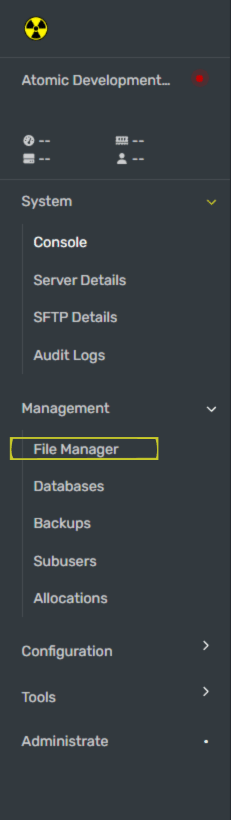 Navigate to `garrysmod/lua/autorun/server` in the File Manager. Create a new file in the `server` folder called `resource.lua` This is where you will choose which addons you want players to download automatically on connect.
## Step 3: Add The Workshop IDs for the Addons You Want Players to Download on Connect
Now we will be grabbing the Workshop IDs of all the addons you want to add. On the Workshop Collections page, right click anywhere and select "Copy Page URL"
Navigate to `garrysmod/lua/autorun/server` in the File Manager. Create a new file in the `server` folder called `resource.lua` This is where you will choose which addons you want players to download automatically on connect.
## Step 3: Add The Workshop IDs for the Addons You Want Players to Download on Connect
Now we will be grabbing the Workshop IDs of all the addons you want to add. On the Workshop Collections page, right click anywhere and select "Copy Page URL"
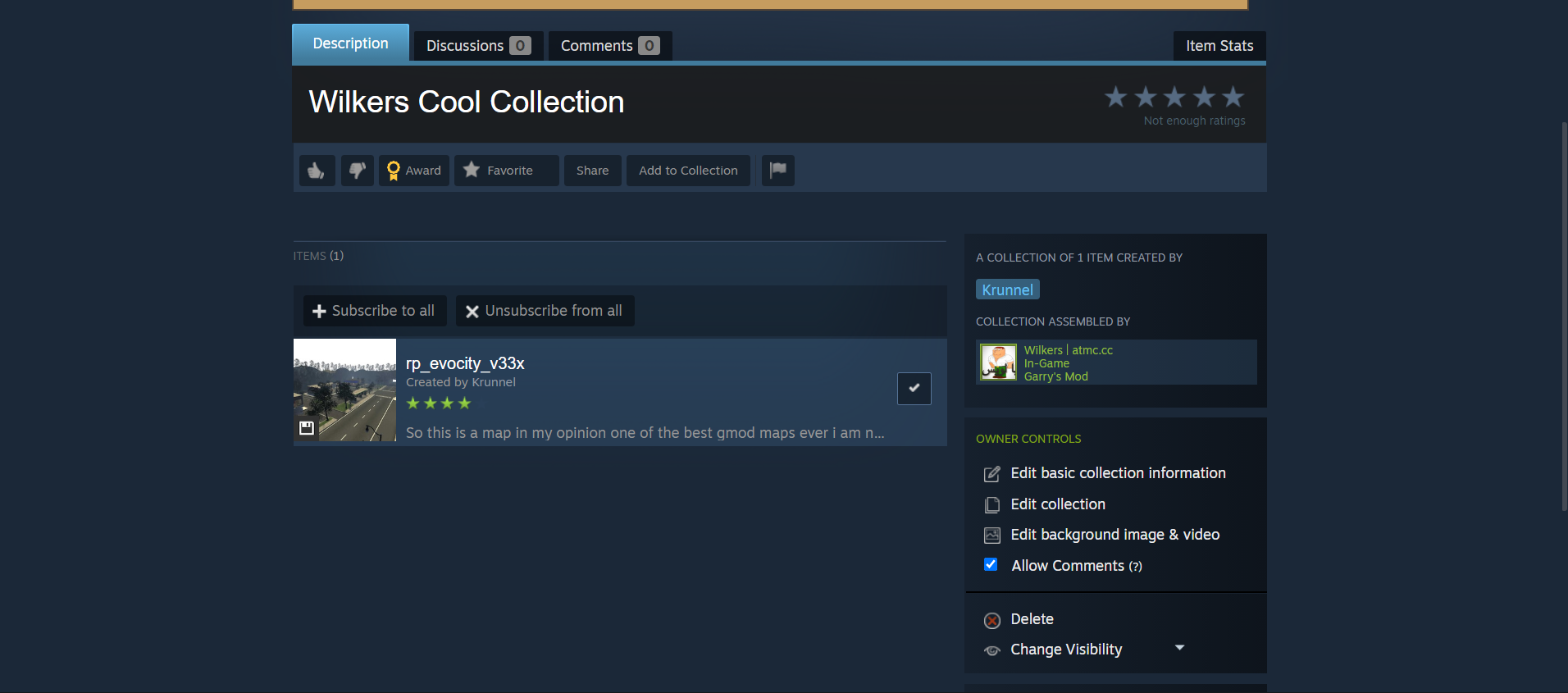 Go to [YourDevTools](https://www.yourdevtools.com/gmod/workshop) and paste your Workshop ID into the text box.
Example: When doing this step, the link `https://steamcommunity.com/sharedfiles/filedetails/?id=2901076879` becomes `2901076879`. `2901076879` is the workshop ID in this example.
Generate your code, copy the code, then paste the code into the `resources.lua` file that was created in Step 2.
## Step 4: Restart Your GMod Server
Once you have configured your auto downloaded workshop addons, restart your GMod server for the workshop addons to work.
Go to [YourDevTools](https://www.yourdevtools.com/gmod/workshop) and paste your Workshop ID into the text box.
Example: When doing this step, the link `https://steamcommunity.com/sharedfiles/filedetails/?id=2901076879` becomes `2901076879`. `2901076879` is the workshop ID in this example.
Generate your code, copy the code, then paste the code into the `resources.lua` file that was created in Step 2.
## Step 4: Restart Your GMod Server
Once you have configured your auto downloaded workshop addons, restart your GMod server for the workshop addons to work.