> ## Documentation Index
> Fetch the complete documentation index at: https://docs.atomicnetworks.co/llms.txt
> Use this file to discover all available pages before exploring further.
# How to Enable RCON on Rust Server
> Learn about how to enable RCON on your Rust server with this easy to follow guide.
**Last Updated 3/14/24**
RCON is a tool that can be used to remotely execute commands to your Rust server. This tool can be used by different external applciations to connect and interact with your rust server.
By default, Rust doesn't have an intuitive way to give commands to the server, or from the control panel. Without RCON access, you wouldn't be able to send commands to your server.
In this guide, we will explain how to enable RCON, and how to set up an application called RustAdmin to interact with your Rust server from an intuitive desktop application.
## Enabling RCON on Rust Server
To enable RCON on your Rust server:
Click [here](https://panel.atomicnetworks.co/login) to navigate to Atomic Panel. You can log in using your account credentials that you received following checkout. The credentials email is sent to the email address on file in the Billing Panel.
If you're not a current Atomic Networks client, [get started on a Rust server](https://atomicnetworks.co/rust-server-hosting) in less than half an hour. If you're already hosting with another Rust service, see [how we offer way more for way less.](https://atomicnetworks.co/rust-server-hosting)
In order for the changes to be active, you will need to stop and restart your server once you are done.
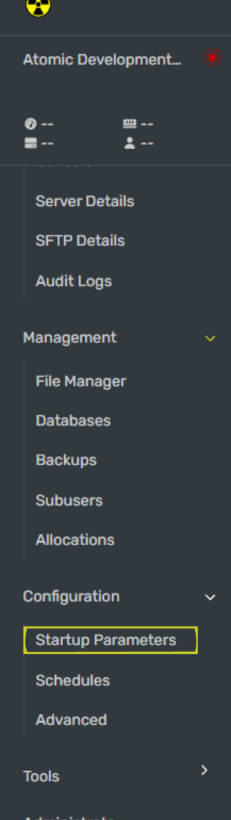 This is the password that applications are going to use to connect to your server. Make this password long and hard to guess.
Do not give this password to people or applications you do not trust.
You will need to copy this port to set up some configuration for applications later.
Once you have set your new RCON password, restart your Rust server for the password to be updated.
## How to Use RustAdmin
RustAdmin is an admin panel with an intuitive GUI used to manage your server. The main strength of using RustAdmin is that you are able to see the bans a player has receieved from other Rust server communities.
To use RustAdmin:
Go to [https://www.rustadmin.com/](https://www.rustadmin.com/)
If you wish to use the shared bans functionality, you will need to create an account.
When you download RustAdmin, it will be downloaded as a .zip File. Open the file and use a tool like WinRar or 7Zip to extract the files to your computer.
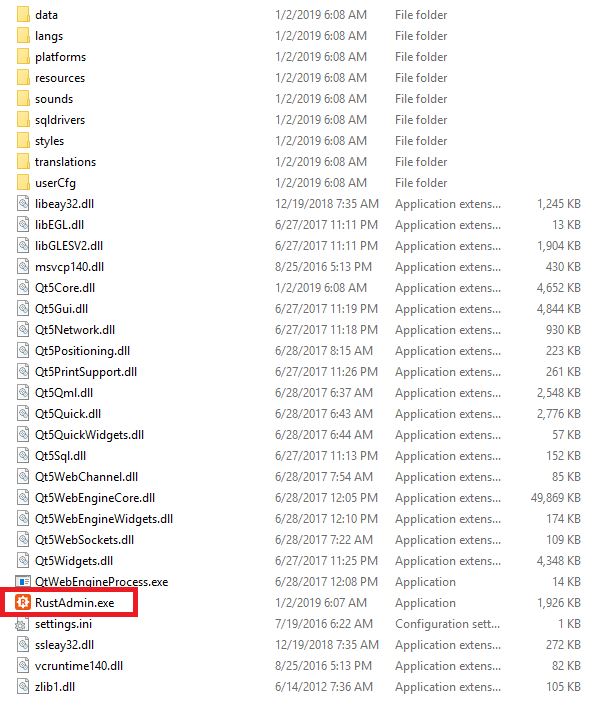
After the files have been extracted, open the "RustAdmin.exe" file.
This is the password that applications are going to use to connect to your server. Make this password long and hard to guess.
Do not give this password to people or applications you do not trust.
You will need to copy this port to set up some configuration for applications later.
Once you have set your new RCON password, restart your Rust server for the password to be updated.
## How to Use RustAdmin
RustAdmin is an admin panel with an intuitive GUI used to manage your server. The main strength of using RustAdmin is that you are able to see the bans a player has receieved from other Rust server communities.
To use RustAdmin:
Go to [https://www.rustadmin.com/](https://www.rustadmin.com/)
If you wish to use the shared bans functionality, you will need to create an account.
When you download RustAdmin, it will be downloaded as a .zip File. Open the file and use a tool like WinRar or 7Zip to extract the files to your computer.
After the files have been extracted, open the "RustAdmin.exe" file.
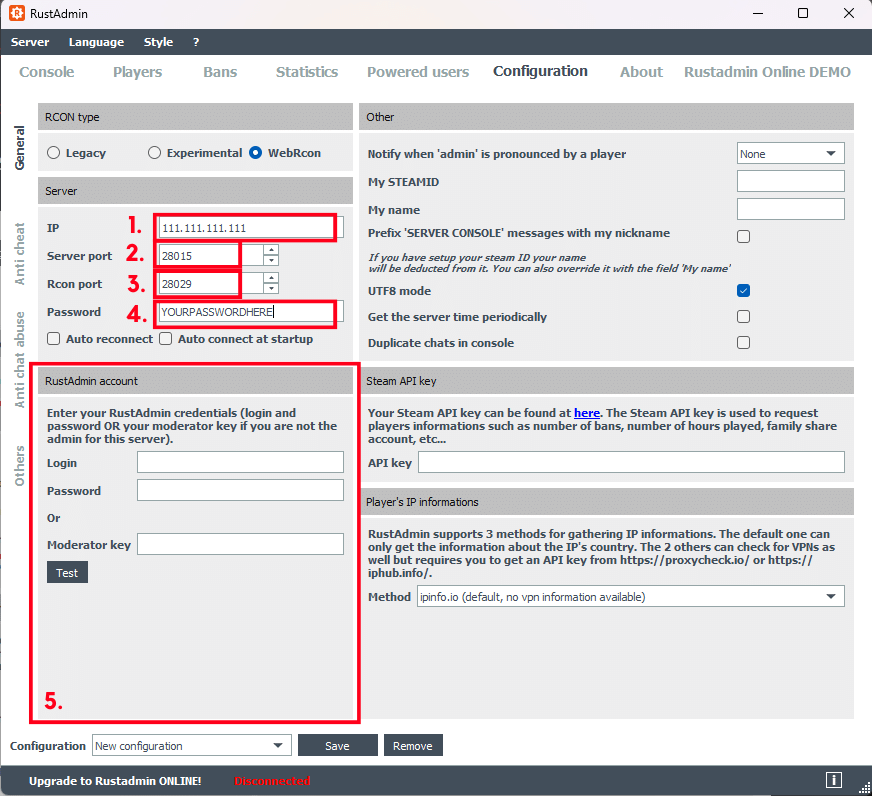
 Here, we will configure all the RCON settings to connect your application to your server.
1. Set `RCON type` to `WebRcon`
2. Set `Server port` to `28015` (this is the port for Rust)
3. Set `RCON port` to the value in the `RCON Port` box found while enabling RCON on your Rust server.
4. Set `Password` to the value in the `RCON Password` box found while enabling RCON on your Rust Server.
5. *(Optional)* Sign in with your RustAdmin credentials.
Here, we will configure all the RCON settings to connect your application to your server.
1. Set `RCON type` to `WebRcon`
2. Set `Server port` to `28015` (this is the port for Rust)
3. Set `RCON port` to the value in the `RCON Port` box found while enabling RCON on your Rust server.
4. Set `Password` to the value in the `RCON Password` box found while enabling RCON on your Rust Server.
5. *(Optional)* Sign in with your RustAdmin credentials.
 When you are done with these steps, click the "Save" button to keep your changes.
In the top left of the RustAdmin application, click "Server", then click "Connect"
Congratulations! You have successfully configured RustAdmin to adminstrate your server.
Still having issues? Contact our support at [https://billing.atomicnetworks.co/submitticket.php](https://billing.atomicnetworks.co/submitticket.php)
When you are done with these steps, click the "Save" button to keep your changes.
In the top left of the RustAdmin application, click "Server", then click "Connect"
Congratulations! You have successfully configured RustAdmin to adminstrate your server.
Still having issues? Contact our support at [https://billing.atomicnetworks.co/submitticket.php](https://billing.atomicnetworks.co/submitticket.php)