> ## Documentation Index
> Fetch the complete documentation index at: https://docs.atomicnetworks.co/llms.txt
> Use this file to discover all available pages before exploring further.
# How to Add Tags to Your Rust Server
> Learn about how to add server tags to your Rust server description with this easy to follow guide.
**Last Updated 3/14/24**
Rust server tags are a way to make it easier for potential players to find your server. When setting up your server to get as many potential players as possible, it's important to configure these tags properly.
With properly configured tags, players looking for your specific type of server will be able to filter it out from other servers.
 To add tags your Rust server:
Click [here](https://panel.atomicnetworks.co/login) to navigate to Atomic Panel. You can log in using your account credentials that you received following checkout. The credentials email is sent to the email address on file in the Billing Panel.
If you're not a current Atomic Networks client, [get started on a Rust server](https://atomicnetworks.co/rust-server-hosting) in less than half an hour. If you're already hosting with another Rust service, see [how we offer way more for way less.](https://atomicnetworks.co/rust-server-hosting)
In order for the changes to be active, you will need to stop and restart your server once you are done.
To add tags your Rust server:
Click [here](https://panel.atomicnetworks.co/login) to navigate to Atomic Panel. You can log in using your account credentials that you received following checkout. The credentials email is sent to the email address on file in the Billing Panel.
If you're not a current Atomic Networks client, [get started on a Rust server](https://atomicnetworks.co/rust-server-hosting) in less than half an hour. If you're already hosting with another Rust service, see [how we offer way more for way less.](https://atomicnetworks.co/rust-server-hosting)
In order for the changes to be active, you will need to stop and restart your server once you are done.
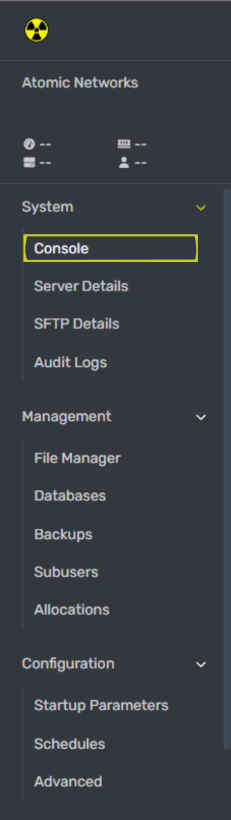 Once you have the command line open, you can use the command server.tags followed by the tags you would like to add separated with a comma in quotations (" ").
Below is a list of all the available tags, you can use one tag per tag group (3rd column) on the table. The "Input Value" is the command you need to but in between the quotations to update the tags.
| Input Value | Tag Displayed on Server Browser | Tag Group |
| ----------- | ------------------------------- | ---------- |
| NA | North America | Region |
| SA | South America | Region |
| EU | Europe | Region |
| WA | West Asia | Region |
| EA | East Asia | Region |
| OC | Oceania | Region |
| AF | Africa | Region |
| pve | PvE | |
| roleplay | Roleplay | |
| builds | Build Server | |
| broyale | Battle Royale | |
| battlefield | Battlefield | |
| training | Combat Training | |
| minigame | Minigame | |
| creative | Creative | |
| hardcore | Hardcore | Difficulty |
| vanilla | Vanilla | Difficulty |
| softcore | Softcore | Difficulty |
The image below is an example of a properly created `server.tags` command. Feel free to copy it and replace it with the tags you want to use.
Once you have the command line open, you can use the command server.tags followed by the tags you would like to add separated with a comma in quotations (" ").
Below is a list of all the available tags, you can use one tag per tag group (3rd column) on the table. The "Input Value" is the command you need to but in between the quotations to update the tags.
| Input Value | Tag Displayed on Server Browser | Tag Group |
| ----------- | ------------------------------- | ---------- |
| NA | North America | Region |
| SA | South America | Region |
| EU | Europe | Region |
| WA | West Asia | Region |
| EA | East Asia | Region |
| OC | Oceania | Region |
| AF | Africa | Region |
| pve | PvE | |
| roleplay | Roleplay | |
| builds | Build Server | |
| broyale | Battle Royale | |
| battlefield | Battlefield | |
| training | Combat Training | |
| minigame | Minigame | |
| creative | Creative | |
| hardcore | Hardcore | Difficulty |
| vanilla | Vanilla | Difficulty |
| softcore | Softcore | Difficulty |
The image below is an example of a properly created `server.tags` command. Feel free to copy it and replace it with the tags you want to use.
 Using more than 1 tag per tag group will create problems for people searching for your server. The tags will not display. The only exception to this rule is server tags without a tag group. (pve, roleplay, creative, etc.)
This will tell your Rust server to check the config file for your new changes.
Once you have set your server tags, restart your Rust server for the tags to be updated.
Still having issues? Contact our support at [https://billing.atomicnetworks.co/submitticket.php](https://billing.atomicnetworks.co/submitticket.php)
Using more than 1 tag per tag group will create problems for people searching for your server. The tags will not display. The only exception to this rule is server tags without a tag group. (pve, roleplay, creative, etc.)
This will tell your Rust server to check the config file for your new changes.
Once you have set your server tags, restart your Rust server for the tags to be updated.
Still having issues? Contact our support at [https://billing.atomicnetworks.co/submitticket.php](https://billing.atomicnetworks.co/submitticket.php)