> ## Documentation Index
> Fetch the complete documentation index at: https://docs.atomicnetworks.co/llms.txt
> Use this file to discover all available pages before exploring further.

# Prepaying with Account Funds

> Learn about prepaying with account funds for VPS, Dedicated Servers, and Game Hosting on Atomic Networks services.

You can add funds to prepay for your service at anytime throughout your time as a client with Atomic Networks. Prepaying by adding funds is useful for situations where you would like to add a certain amount of money to your service, then cancel the recurring subscription to ensure you aren't accidently charged.

<Info>When you purchase a service using Cryptocurrency, it might be a good idea to prepay by adding funds. You'll want to make sure the service gets' paid for to avoid suspension and termination.</Info>

To add account funds on an Atomic Networks service, follow these steps: 

<Steps>
  <Step title="Navigate to the Billing Panel">
    Click [here](https://billing.atomicnetworks.co/) to be taken to the Billing Panel.

  </Step>

  <Step title="Select 'My Invoices' Under the 'Billing' Tab">
    <img src="https://mintcdn.com/atomicnetworks/m8FVQg74mcrYFl7b/images/selectmyinvoices.png?fit=max&auto=format&n=m8FVQg74mcrYFl7b&q=85&s=02a5c037c13b5f8ec5b202d275a14ab0" alt="" width="494" height="92" data-path="images/selectmyinvoices.png" />
  </Step>

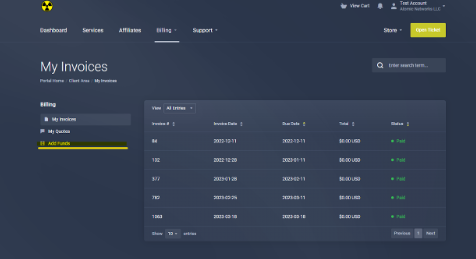
  <Step title="Select 'Add Funds'">
    <img src="https://mintcdn.com/atomicnetworks/m8FVQg74mcrYFl7b/images/selectaddfunds.png?fit=max&auto=format&n=m8FVQg74mcrYFl7b&q=85&s=8aa3144ebcfd507c1828d04b4bd5a91c" alt="" width="476" height="259" data-path="images/selectaddfunds.png" />
  </Step>

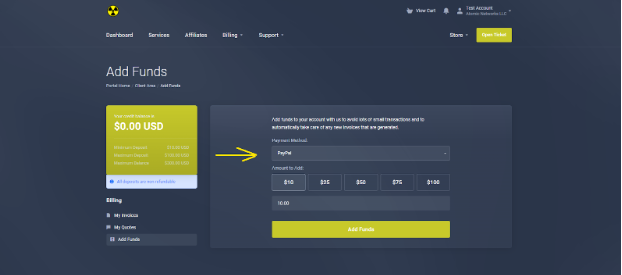
  <Step title="Select a payment method. Choose how much you want to add. ">
    <img src="https://mintcdn.com/atomicnetworks/m8FVQg74mcrYFl7b/images/selectapaymentmethod.png?fit=max&auto=format&n=m8FVQg74mcrYFl7b&q=85&s=f5da730e0b653bb3db4426fb579b20ae" alt="" width="622" height="275" data-path="images/selectapaymentmethod.png" />
  </Step>

  <Step title="Proceed through the checkout process for your selected payment method. " />
</Steps>