> ## Documentation Index
> Fetch the complete documentation index at: https://docs.atomicnetworks.co/llms.txt
> Use this file to discover all available pages before exploring further.

# Adding a Subuser to Billing

> Learn about Adding a Subuser to Billing for VPS, Dedicated Servers, and Game Hosting on Atomic Networks services.

Adding a contact to your billing is useful in situations where you want to give someone else the ability to perform actions on your behalf. By adding a Sub-User to your account, you can give another user permissions to… 

* Modify Your User Profile
* View Your Access to Services with Atomic Networks
* View and Modify Passwords for Panels
* View Domain Registrations
* **View and Pay Invoices**
* **View and Open Support Tickets**
* View and Manage Affiliate Account
* Place New Orders/Upgrades/Cancellations
* And more…

To add a Sub-User, follow the steps below… 

<Steps>
  <Step title="Navigate to the User Management Dashboard.">
    Click [here](https://billing.atomicnetworks.co/account/users) to be taken to the User Management Dashboard.
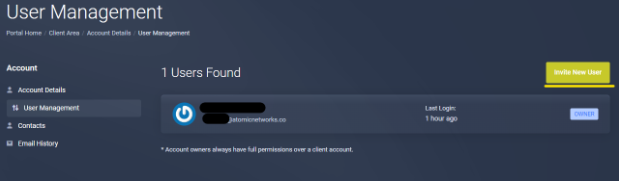
  </Step>

  <Step title="Select 'Invite New User'">
    <img src="https://mintcdn.com/atomicnetworks/m8FVQg74mcrYFl7b/images/selectnewuser.png?fit=max&auto=format&n=m8FVQg74mcrYFl7b&q=85&s=b36e16383b4cdecff3daeb3d26790f81" alt="" width="619" height="181" data-path="images/selectnewuser.png" />
  </Step>

  <Step title="Insert the Contact Email and Configure Permissions">
    <Frame caption="Insert the email of the person you want to add as a sub-user to your billing panel.">
      <img src="https://mintcdn.com/atomicnetworks/m8FVQg74mcrYFl7b/images/addemailofsubuser.png?fit=max&auto=format&n=m8FVQg74mcrYFl7b&q=85&s=f1756dba20df959d0ffda02bd291a9c9" width="394" height="307" data-path="images/addemailofsubuser.png" />
    </Frame>
  </Step>

  <Step title="Optional: Configure Permissions Access for Sub-User">
    <Frame caption="If you are looking to only have the user perform certain tasks (ex. giving them permission to pay invoices, but not allowing them to purchase new packages) click the “Choose Permissions” tab and select which permissions you would like to grant to them. ">
      <img src="https://mintcdn.com/atomicnetworks/m8FVQg74mcrYFl7b/images/configurepermissions.png?fit=max&auto=format&n=m8FVQg74mcrYFl7b&q=85&s=da03963b47c2704d104ef9bcf65583cc" width="539" height="791" data-path="images/configurepermissions.png" />
    </Frame>
  </Step>
</Steps>

<Warning> Do not give a Sub-User “All Permissions” unless you are comfortable with them having complete control over your Billing Panel. </Warning>
